The security checklist that matters more than any antivirus
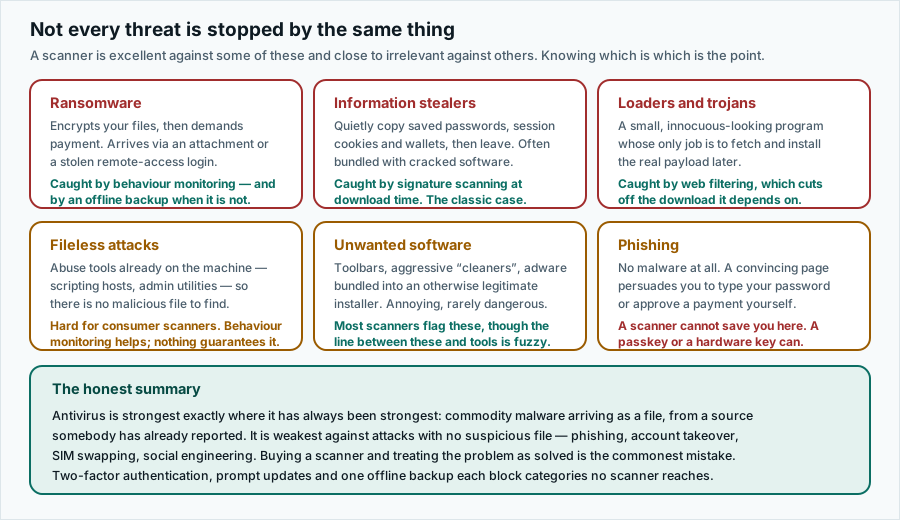
Eight things, most of them free, most of them one-off. Between them they cover the attacks that a malware scanner cannot reach — which is most of the attacks that actually happen to ordinary people.
Advertising disclosure
This article contains paid partner links, marked “Partner link”. If you subscribe after following one, ASSURITY s.r.o. is paid a commission by the advertiser. You pay the same price you would pay going direct. Commission does not buy a favourable verdict: nobody outside this site reads or approves an article before publication, and the drawbacks below were not cleared with anyone. Our editorial policy sets out the rules we work to.
We are an advertising-funded site and the page you are reading is on a domain that earns commission from a security subscription. It would be straightforward to write a checklist whose conclusion is “buy the thing”. This is not that checklist. Five of the eight items cost nothing, and the three most important ones are all free.
1. Turn on two-factor authentication — email first
If you do one thing on this page, do this one. An attacker with your password and nothing else is stopped cold by a second factor.
Order of priority: your email account first, because whoever controls it can reset every other password you own; then your bank; then anything holding a payment method; then everything else.
Prefer an authenticator app or a passkey over SMS codes. SMS is much better than nothing, but text messages can be intercepted through SIM-swap fraud, where an attacker persuades a mobile operator to move your number to their device. Passkeys are better still, because they are bound to the real site and simply will not work on a lookalike domain — which makes them the one measure that actually defeats phishing rather than merely making it harder.
Cost: nothing. Time: about ten minutes per account.
2. Stop reusing passwords
Credential stuffing is mundane, automated and extremely effective: a breach at one company hands attackers a list of addresses and passwords, and software tries each pair against hundreds of other services. It works because most people reuse.
Use a password manager. Every major browser has one built in at no cost, and there are well-regarded standalone and open-source options. The specific choice matters far less than the switch from “remembered and reused” to “generated and unique”.
A scanner cannot help you here at all. The attacker never touches your device.
Cost: nothing, or a few euros a year. Time: an hour to set up, then less effort than before.
3. Install updates promptly
Unglamorous and consistently underrated. A large share of successful attacks use a vulnerability for which a patch already existed — the patch simply had not been applied. Once a fix is published, the flaw becomes public knowledge and exploitation of unpatched systems typically increases rather than decreases.
Enable automatic updates for the operating system, the browser and anything that opens files from the internet. Reboot when asked rather than deferring for the ninth time. And be aware of end-of-support dates: a device that stops receiving security updates does not fail visibly, it just quietly stops being defensible.
Cost: nothing. Time: occasional inconvenience.
4. Keep one backup that ransomware cannot reach
This is the only measure that reliably defeats ransomware after it has run. If you can restore yesterday’s files, an encryption attack is an irritating afternoon rather than a catastrophe.
The requirement is that the backup must not be continuously writable by the machine being backed up. A permanently-connected external drive will be encrypted along with everything else; a synced cloud folder may faithfully sync the encrypted versions over the good ones. What works: an external drive you unplug, or a backup service with versioning and a retention window you can roll back through.
The classic rule is three copies, on two kinds of media, with one kept off-site. For a household, “the laptop, an external drive in a drawer, and a versioned cloud service” satisfies it.
Cost: the price of a drive, or a small subscription. Time: an hour to set up.
5. Leave real-time protection switched on
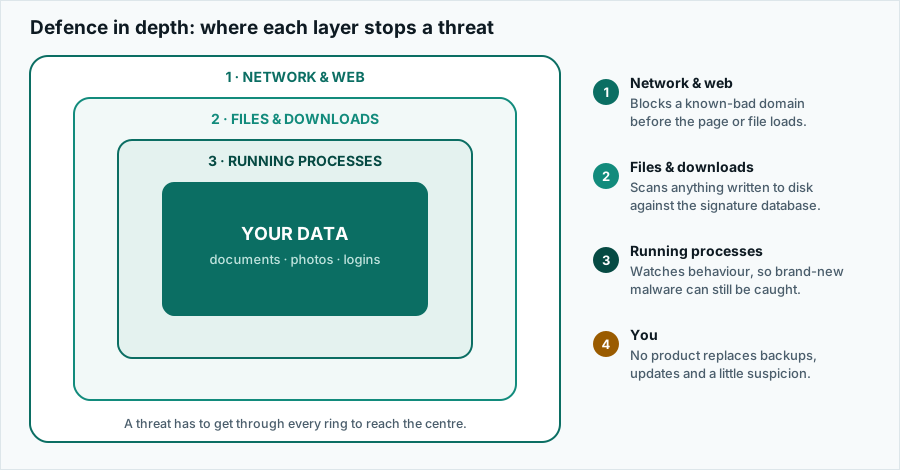
You already have it: Microsoft Defender on Windows, Gatekeeper and XProtect on macOS, Play Protect on Android. Whether you add a third-party scanner on top is a judgement call. Whether you leave something running is not.
Two rules. Never disable it to make an installer work — that instruction is a hallmark of malicious software and appears in almost nothing legitimate. And never run two resident scanners at once; they fight over the same hooks and you end up slower rather than safer.
What real-time protection is actually doing.
Cost: nothing, unless you choose to add a paid one.
6. Learn the two phishing tells
Phishing does not rely on a technical flaw, so no scanner and no VPN prevents it. Two habits do most of the work:
- Check the domain, not the design. A convincing replica of your bank’s login page is trivial to build; the domain in the address bar is the part the attacker cannot copy. Read it right to left from the final slash: the last two labels before the first slash are the real site.
- Treat urgency as the warning sign itself. “Your account will be suspended in 24 hours”, “confirm this payment immediately”, “the offer expires tonight”. Manufactured time pressure exists to stop you checking. Real institutions are content for you to hang up and call the number on your card.
Also: never approve a login prompt you did not personally initiate, even if it arrives repeatedly. Repeated prompts are an attack technique in themselves, designed to wear you down.
Cost: nothing.
7. Lock down the recovery path
People secure the front door and leave the account-recovery flow wide open. An attacker does not need your password if they can convince the provider to issue a new one.
- Check the recovery email and phone number on your main accounts. An address you lost access to years ago is a live liability.
- Store backup codes somewhere you will actually find them — printed, or in your password manager — not in a file on the device they protect.
- Security questions are a password you told everyone. If a service insists on them, put random text in the field and save it in your password manager.
- Set a PIN or port-out lock with your mobile operator if they offer one. That is what blocks a SIM swap.
Cost: nothing. Time: twenty minutes, once.
8. Reduce what is out there
You cannot protect data you have handed to somebody else, but you can hand over less of it.
- Use an email alias per service where your provider supports it, so a leak from one company does not link to the rest.
- Delete accounts you no longer use. A dormant account at a company with poor security is a permanent open liability.
- Uninstall applications and browser extensions you stopped using. Extensions in particular can be sold to a new owner and updated into something unpleasant.
- In the EU, you have a right to erasure. You can ask a company to delete your data, and it has to answer. Data-removal services automate this at scale, but the letter is free to send yourself.
Cost: nothing. Time: an afternoon, once.
If you only do three
First
Two-factor authentication on your email account. Everything else can be reset from there, so it is the account that protects all the others.
Second
A password manager, and unique passwords for your bank, your email and anything holding a card.
Third
One backup that is not permanently connected to the machine it is backing up.
All three are free. None of them is a product we are paid to advertise. If you have the budget for a security subscription but have not done these, do these first — the subscription will not compensate for skipping them.
Accuracy and trademarks
Written by Jennifer Bell and published on . Product details change without notice; where anything here differs from the vendor’s own current information, the vendor’s information prevails. Corrections to info@pravia.online — see our corrections procedure.
pravia.online is an independent publication. It is not affiliated with, endorsed by, sponsored by or otherwise connected to Surfshark B.V., Nord Security, Microsoft, Apple, Google or any other company named on this site. “Surfshark” and all other product and company names, logos and brands are the property of their respective owners and are used here for identification and descriptive purposes only.